There are settings available for the Auto Links feature.
Go to “TaxoPress” and then “Auto Links” in your WordPress admin menu. Click “Edit” for one of your existing Auto Links.

General #
These are the important settings for each example of Auto Links:
- Title: This is only for your use in the WordPress admin area.
- Taxonomy: Choose which taxonomy terms will be linked.
- Auto Link case: This enables you to be consistent in your use of uppercase and lowercase.
- Auto Link areas: Choose which areas of the content will have links.
- Auto Link title attribute: This will appear when users hover over links. This is also customizable in TaxoPress Pro for the Custom URLs feature.

Post Types #
TaxoPress will attempt to automatically add Auto Links to your chosen content. It may not be successful for all post types and layouts.

Control #
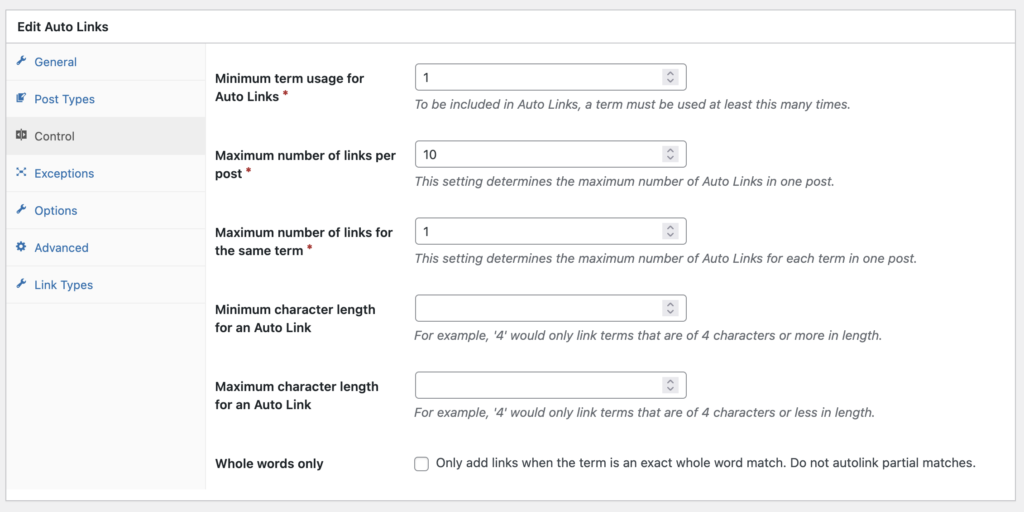
These options allow you to set maximum limits for how often Auto Links will appear in your content. It also allows you to choose terms of a minimum and maximum length. On this tab, you can also choose to only add links for whole words, not partial matches.
Exceptions #
In this area, you can exclude specific terms from being linked, and you can also stop Auto Links from working inside a wide range of HTML elements. We’ve defined 9 default elements from H1 and H2 to pre and code. You can also add your own custom classes and IDs. Click here for more on this Exceptions feature.

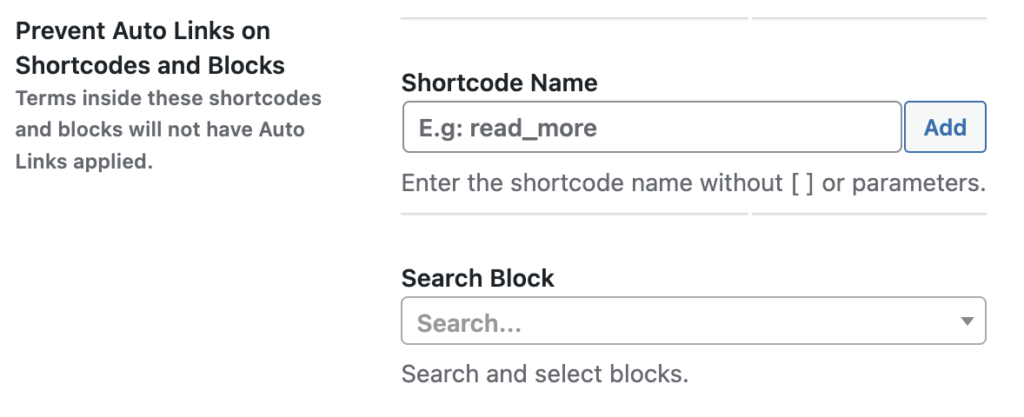
In TaxoPress Pro, you will also have the option to specify new elements that will not be included in Auto Links. In this example below, we have excluded the “Blockquote” element from Auto Links:
Options #
Under the “Options” tab, you can use the “Add links for all terms” box to decide if links will be added to all terms, or only those attached to the post. TaxoPress Pro users will also be able to decide if links are added to synonyms.

Advanced #
This area contains more complex options that only need to be modified if Auto Links is not working for you. Here you also will be able to add a CSS class to your term link.

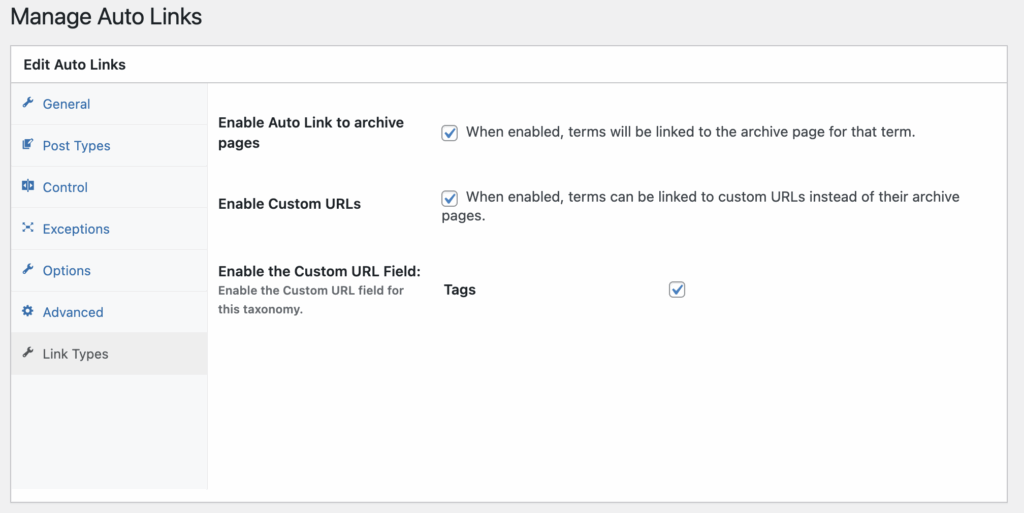
Link Types #
This allows you to enable the Custom URL option and choose any URL to use with the Auto Links feature.