
TaxoPress Cleans Up Your Rarely-Used Tags and Categories
TaxoPress 3.33 is available now. The Free version is available from the WordPress plugin directory and TaxoPress members can download the Pro version from this website.
The major new feature in this release is called “Hidden Terms”. This will clean up terms that are infrequently used. This feature removes low-value terms that are not attached to many posts. Having too many unused terms can be a problem for your site’s search engine optimization.
This update also has several other improvements. For example, you can now prevent users from creating terms with unwanted characters such as @$%^)(*!.
Table of Contents
The new Hidden Terms feature
This feature was inspired by talking to customers with a lot of Tags and Categories on their sites. On sites with 100’s of terms, some of those terms only appear on a few posts. These customers wanted to hide terms that weren’t particularly relevant. The “Hidden Terms” feature is the solution. It will automatically hide any terms that aren’t used on many posts.
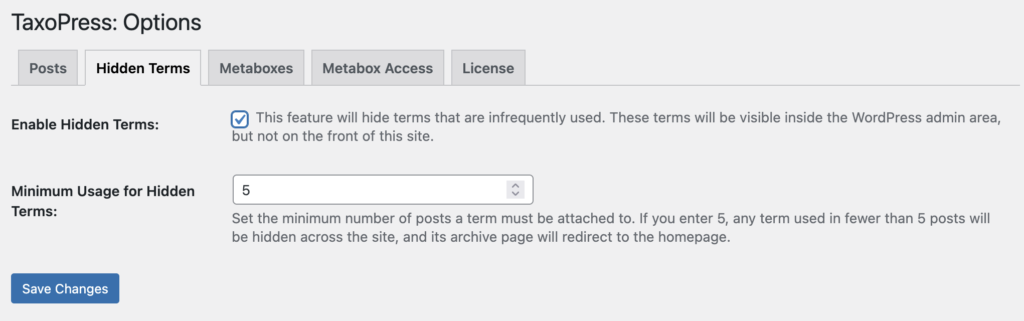
To enable this new feature, go to “TaxoPress”, then “Settings” in your WordPress admin menu.
- Click the “Enable Hidden Terms” box and check the box.
- You can also choose the “Minimum Usage for Hidden Terms” option. This will set the minimum number of posts a term must be attached to. If you enter “5”, any term used in fewer than five posts will be hidden across the site, and its archive page will redirect to the homepage.
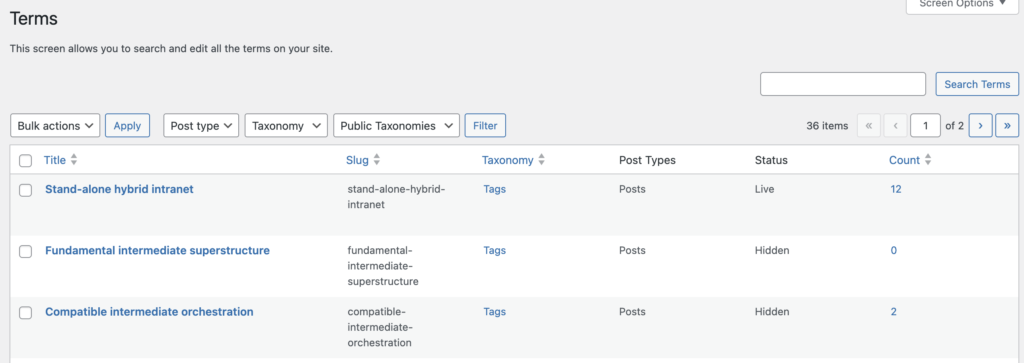
One easy way to see which posts are hidden is to go to “TaxoPress” and then “Terms” in your WordPress admin menu. In the screenshot below, you will see terms marked as either “Live” or “Hidden”. Here’s how terms marked as “Hidden” will be treated:
- They will not be shown in any displays on the front of your site.
- If you try to access the archive pages for the terms, you will be redirected to your site’s homepage.
This feature will update automatically. So if you choose to hide terms that are used less than five times, the term will move to “Live” as soon as it is added to a fifth post.
Improvements to the Metabox feature
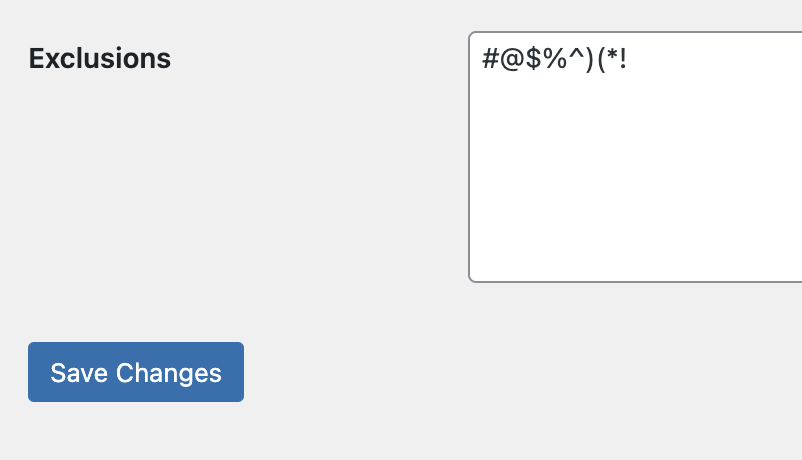
We’ve added lots of nice updates to the Metaboxes feature in TaxoPress. For example, you can now block Tags and Categories with specific characters. You can prevent terms from being created if they contain characters like this: @$%^)(*!
- Go to “TaxoPress” then “Settings”.
- Click the “Metaboxes”. There will be settings for “Posts”, “Pages” and other content types.
- Scroll down to the “Exclusions” area. Here you can enter the characters you want to block, as in this screenshot:
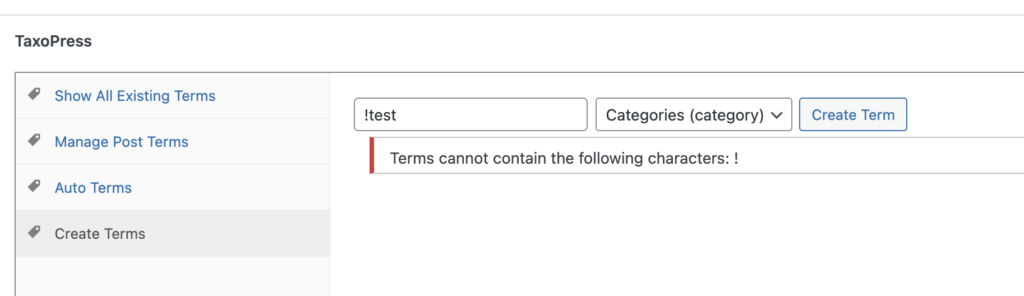
Now when a user tries to add a term containing any of these characters, they will be blocked. They will see the message, “Terms cannot contain the following characters: !”
Support for new OpenAI models
The Auto Terms feature in TaxoPress allows you can scan your content and automatically assign new and existing terms. This is possible with our OpenAI integration. There are now more OpenAI models for you to choose from in the Auto Terms feature. We’ve added support for these models:
- GPT 4.5
- o3 Mini
- o1 Mini
- o1
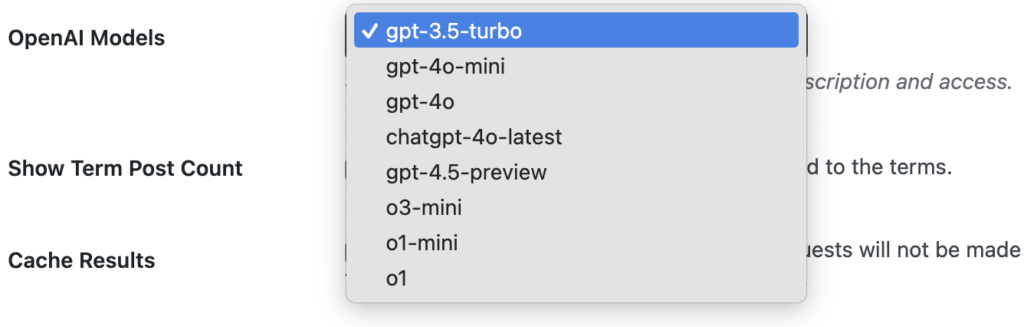
Here’s a comparison of some results from these different models. I’ve scanned this story about Apple’s response to trade tariffs. Here are the results from the older GPT 3.5 Turbo model. This is a “legacy” model and is very cheap to run. It results in lots of shorter suggestions, most of them only one word.
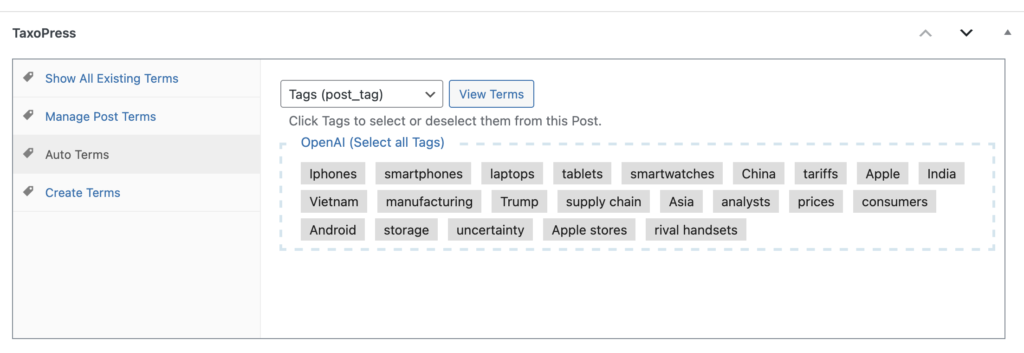
Here is the 4.5 model which is currently the largest and most capable GPT model. The terms suggested by this model are more sophisticated. Half of them are two-word phrases.
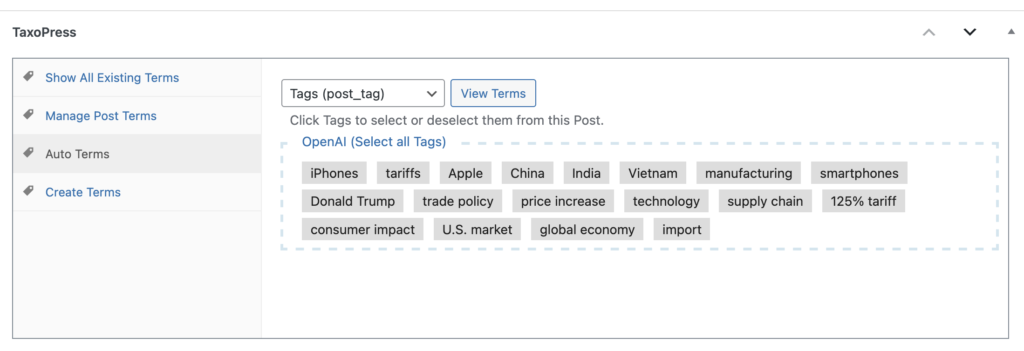
And finally, here is the latest o1 model, which was released most recently. This is a smaller model than 4.5 and cheaper to run.
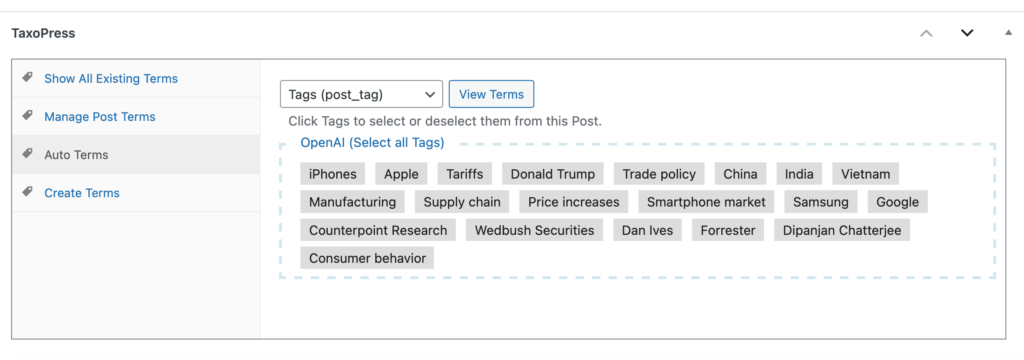
When using OpenAI to scan your content and create new terms, I would recommend going to the Models page on the OpenAI website and learning about the alternatives. You can also try some test runs on your content to see which produces the results that you are happiest with.
Hiding tags with low post counts is a great feature. However, the WordPress tag cloud doesn’t omit what TaxoPress hides. Is there a cron job, or an adjustment that can be made? It shows tags that go to the home page rather than omitting the tag.
Hi Justin. TaxoPress has it’s own replacement for the WordPress tag cloud.